Process orders placed before you installed Filemonk
Send download links to customers who bought before Filemonk existed on your store.
Last updated
Filemonk starts with orders placed after it is installed. If you are migrating from another app, or you have been selling digital products by hand, this brings your existing customers across in one run so they can download from Filemonk too.
Before you begin
Section titled “Before you begin”Read this section properly, because the run cannot be undone.
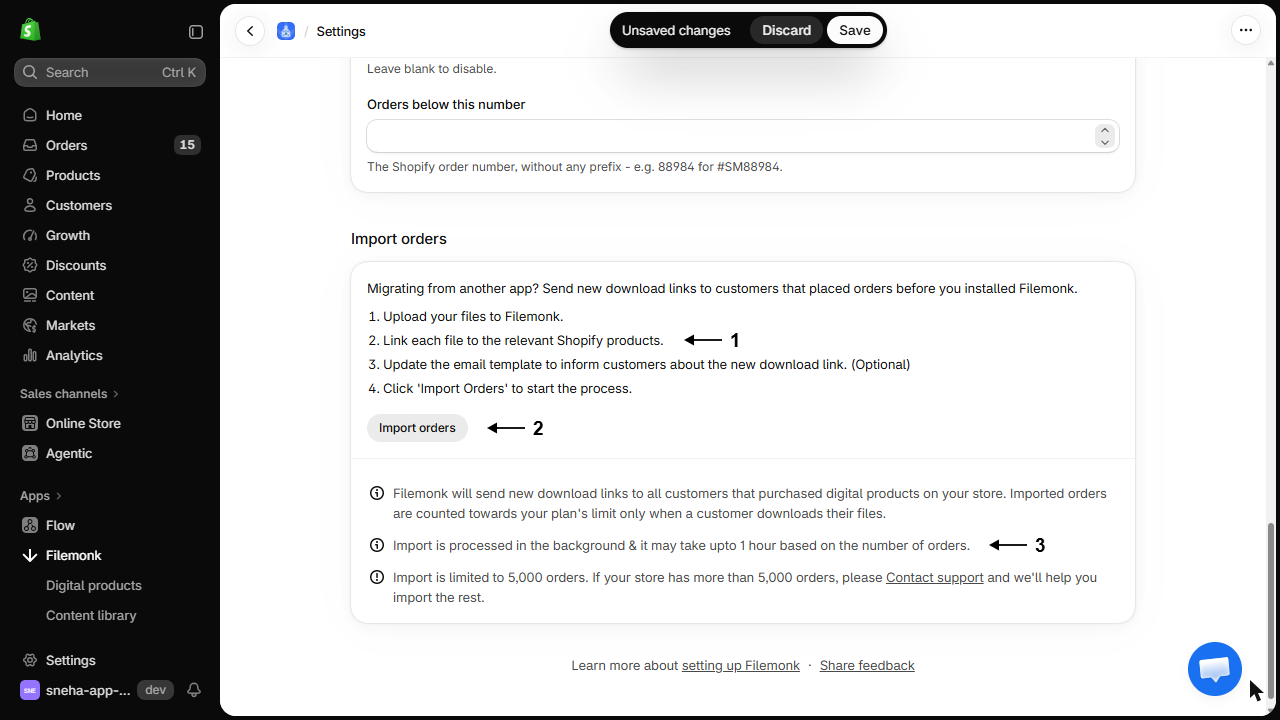
- Set up first: upload your files, and link each one to the relevant Shopify products. The import only brings in orders whose products already have files linked, and skips the rest.
- Consider updating your email template first, so customers understand why they are hearing from you. See Customize the email template.
- The import is limited to 5,000 orders. Contact support if your store has more.
- It runs in the background and can take up to an hour depending on volume.
- Imported orders count towards your plan’s limit only once they’re used, for example when the customer opens their download page or you send them a download email.
- Orders before your Ignore old orders cutoff aren’t imported. Clear the cutoff first if you want them. See Ignore orders before a date or order number.
Set it up
Section titled “Set it up”- Click Filemonk in the left menu of your Shopify admin.
- Click Settings in the app’s menu, then open the Orders tab.
- Find Import orders.
- Click Import orders, read the Confirm import window, and click Proceed.
- In the Import orders and send download links window, leave Suppress emails to customers for imported orders ticked, then click Import orders.
Progress is shown as it runs, with a count of orders processed.
Sending download links
Section titled “Sending download links”Filemonk doesn’t email customers automatically for imported orders. When the import has finished, click Orders in the app’s menu, select the orders you want to email, click Send emails, then click Send. See Import orders for the full flow.
Check your setup
Section titled “Check your setup”When it finishes, open Orders in the app’s menu and spot-check a few imported orders: right products, right files. If you sent emails, check one order’s email history to confirm where it went.
Troubleshooting
Section titled “Troubleshooting”Customers didn't get an email after the import
Filemonk doesn’t email customers automatically for imported orders. Select the orders on the Orders page and click Send emails.
Some orders weren't imported
Their products had no files linked when the import ran, or the orders are before your Ignore old orders cutoff. Link the files or clear the cutoff, then run the import again. Orders already in Filemonk are skipped.
The import seems stuck
It runs in the background and can take up to an hour. Leave it. If it has clearly failed, the app reports an error and you can contact support with it.
My store has more than 5,000 orders
The tool stops there. Contact support and they will help with the rest.
I only want recent orders, not everything
This tool takes everything it can match. For a specific set, use Bulk import with a list of order numbers instead. See Import missing orders.
Can I run it more than once?
Yes. Once an import finishes, the Import orders button is available again, and a new import brings in only orders that aren’t already in Filemonk. For a few specific orders, use Bulk import or Find order. See Import missing orders.
Will it duplicate orders already in Filemonk?
No. Orders already present are recognised.
Do imported orders eat my plan's order limit immediately?
No. They count only once they’re used, for example when the customer opens their download page or you send them a download email, so importing history does not consume your allowance on its own.
What if a customer's product no longer exists?
That order cannot be matched and is skipped. There is nothing to deliver.
Related guides
Section titled “Related guides”- Switch from another app to Filemonk, the migration this belongs to.
- Import orders, the full import flow in detail.
- Import missing orders, for a specific list of orders.
- Ignore orders before a date or order number, the opposite choice.
Thanks for letting us know.
Still stuck? Ask Quinn or chat with support