Require customers to log in to access downloads
Make customers sign in before the download page will show them their files.
Last updated
By default a download page works for whoever holds its link. Requiring a login puts the download page behind a sign-in, so a page link forwarded to a friend asks them to sign in as the buyer.
This protects the download page. It is not a lock on the files themselves, so treat it as one layer among several rather than the whole answer, and keep download limits and watermarking on as well.
There are two ways to do this, and they suit different stores.
Choose your method
Section titled “Choose your method”| Method | How it works | Trade-off |
|---|---|---|
| Require customers to login on your download page | The page asks for a login before showing files | Only available when customers download from your store, so it does not apply to the legacy Filemonk-hosted page |
| Customer Account page | Downloads live inside the customer’s Shopify account, which already requires a login | More setup, since it needs Filemonk’s extensions added to your store |
The second is the more established route and gives customers a permanent home for everything they have bought. See Let customers download from the account page.
Before you begin
Section titled “Before you begin”- Customers need to be able to create or access an account on your store, so check your Shopify customer account settings first.
- Requiring a login adds a step before the file. Expect some drop-off and more “I can’t get in” emails, and weigh that against the protection.
- Guest checkout buyers may have no account matching their order, which is the most common cause of lockouts.
Set it up
Section titled “Set it up”To require a login on your download page:
-
Click Filemonk in the left menu of your Shopify admin.
-
Click Settings in the app’s menu, then open the Download page tab.
-
Scroll to the Page settings card. Under Download files from, make sure Your store is selected. The login option only appears under that choice.
-
Your download link builder appears below it. Under that, tick Require customers to login. The help text reads “Customers will be asked to login to download their files.”
-
Click Save in the save bar at the top of the page.
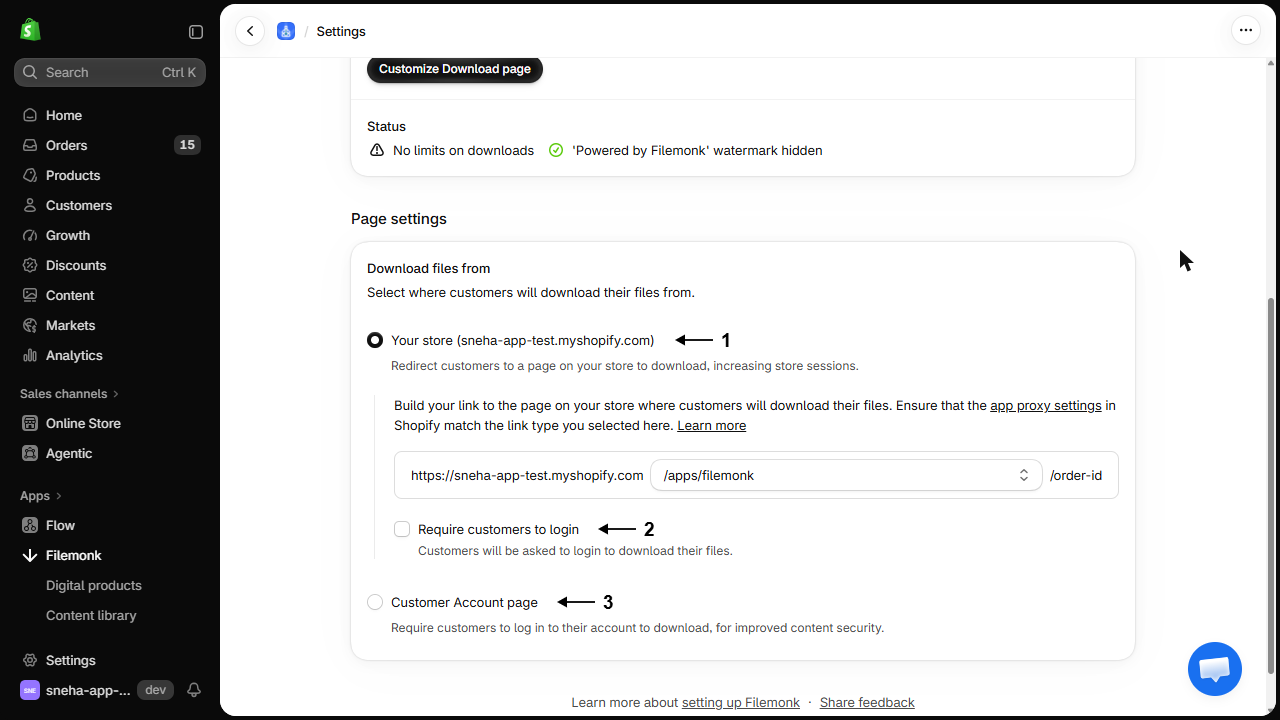
Then write what the login screen says:
- On the same tab, in the Customize page card, click Customize Download page.
- In the editor’s section list, under Access, click Login page. A note at the top of the section repeats when this page appears and links back to the setting above.
- Set Title, Message and Button text. Button text cannot be left empty.
- Click Save in the save bar at the top of the editor.
The fields start with “Customer Login Required”, a message asking the customer to log in with the correct account, and “Log In”. Replacing them with wording that names which account to use prevents most confusion.
Title needs a paid plan, with an upgrade button beneath it on the Start plan. See Filemonk pricing and plans.
What customers will see
Section titled “What customers will see”Opening their download link, a customer who is not signed in gets your login screen instead of their files. After signing in they land back on the download page. Customers already signed in see no change.
Check your setup
Section titled “Check your setup”Open a test order’s download link in a private browsing window, where you are not signed in. You should get the login screen. Sign in as the buyer and confirm the files appear. See Create a test order.
Troubleshooting
Section titled “Troubleshooting”A customer can't log in to reach their files
Check they are using the same email address as the order. Orders placed as a guest, or with a different address, will not match an account. If they cannot resolve it, send them the files another way and consider whether the requirement suits your buyers.
The login screen never appears
Confirm Require customers to login is ticked, and that customers are reaching the download page rather than a direct file link. A direct link bypasses the page and its rules. See Get a downloadable link for a file.
I can't find Require customers to login
It is indented under Your store in the Page settings card, so it is hidden while Customer Account page is selected. If you see a Legacy Download Page warning instead, and both choices are greyed out, your store is still on the older Filemonk-hosted page. Contact support to move off it.
Support requests went up after turning this on
That is the expected cost, and it falls hardest on stores with lots of guest checkout. Rewrite the login message to name the account to use, or move to the customer account page route instead.
The Login page section is missing from the editor
Customers download from the Customer Account page, which hides it. That route already requires a login, so there is no login screen of Filemonk’s to word.
Does this stop sharing completely?
No. It stops a forwarded link working on its own, but a customer who shares their account credentials shares their downloads. Pair it with limits and PDF watermarks. See How Filemonk protects your files.
What about customers who checked out as a guest?
They have no account to sign in to, which locks them out. Either allow account creation with the order’s email, or leave the login requirement off if guest checkout is common on your store.
Does it apply to orders placed before I turned it on?
Yes. There is one download page and one rule, so past orders start asking for a login too.
Can I require login for some products only?
No, it is store-wide. Per-product protection is better served by download limits and watermarking.
Related guides
Section titled “Related guides”- Let customers download from the account page, the other way to require a login.
- How Filemonk protects your files, for how this fits with the rest.
- Customize the download page, where the login wording lives.
Thanks for letting us know.
Still stuck? Ask Quinn or chat with support